To start building a roadmap for a client, go to the Roadmap tab in their profile. If one hasn’t been created yet, a basic template will be generated automatically. The roadmap lays out each week from the client’s start date to their end date. If no end date is set, it will extend up to one year. It uses the clients check-in date as the first day of each week.
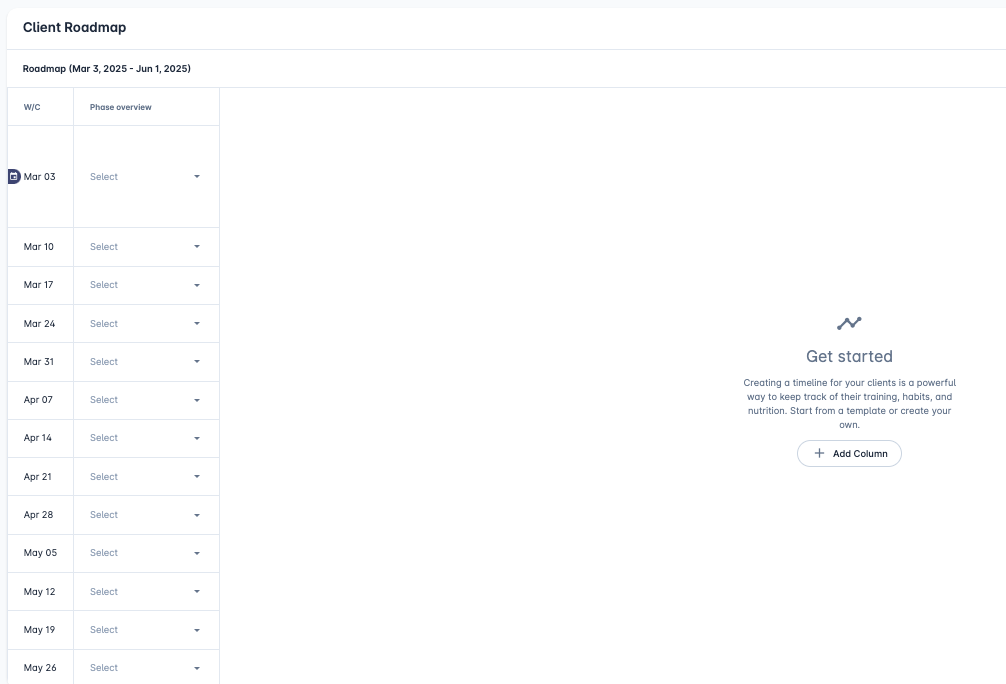
The calendar icon highlights the current week, and the roadmap will automatically scroll to that week for easy access.
The Phase column is a customisable dropdown that defines the focus of each week, such as Prep, Maintenance, Health, or any other label that suits your coaching approach. You can name it however you like.
To add a phase simply select the cell and a empty list will appear. Start by entering the name of the phase and then click create.
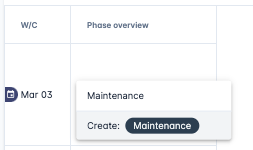
Once created this option will be available for you to select. Add as many status’ as you would like.
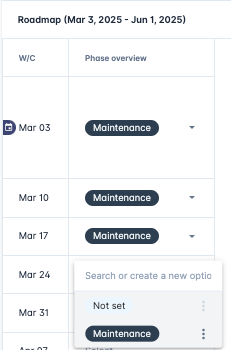
The roadmap has a variety of column types to choose from to start building out the roadmap. Start by selecting, add a column or click the plus icon in the top right.
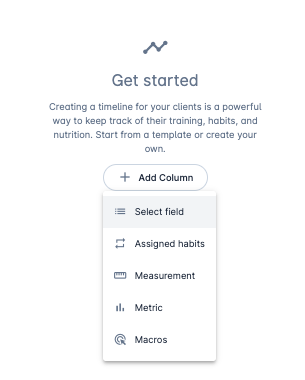
Column | Description |
Select field | A drop down menu of options similar to phase column |
Assigned habits | Auto assign habits |
Measurement | Select a measurement you would like to be injected into the roadmap. These will get auto populated as the weeks commence. |
Metric | Select a measurement you would like to be injected into the roadmap. These will get auto populated as the weeks commence. |
Macros | Define a clients macro targets for that week |
The Assign Habits column allows you to set the habits you want the client to follow each week. Simply enter all the habits they should complete daily.
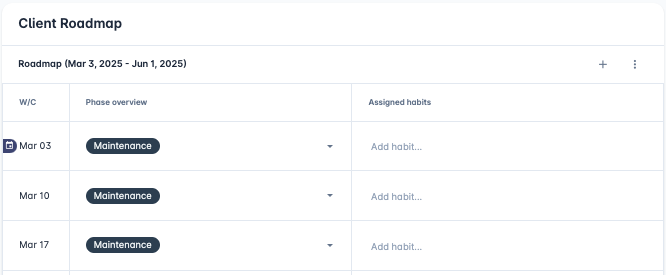
When you add a habit it will automatically assign it to the end of the clients roadmap.
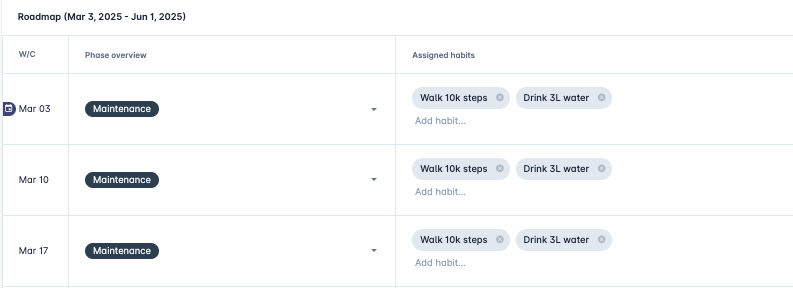
To end a habit, simply click the delete icon next to it, and it will be removed from that week onward.
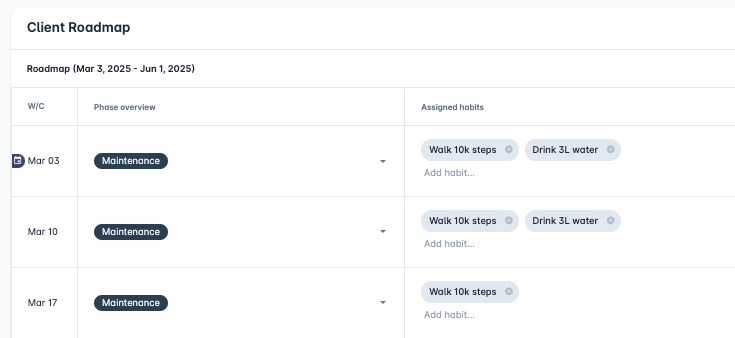
You can add as many habits as needed, and CoachKit will automatically assign them once the client reaches that week.
To check your clients accountability to their daily habits take a look at the habits tab on the clients profile.
How to check clients habit accountability?
Steps to check client accountability for daily habits
Clients can update their metrics & measurements at any time, though they’re typically submitted through daily or weekly check-in forms. As data is entered in these forms, it is automatically added to their profile and can also be included in the roadmap.
To add metrics & measurements to the roadmap, select a Metric or Measurement column type. You can then select from the metrics & measurements available. This will include CoachKit defaults as well as any custom ones you have added.
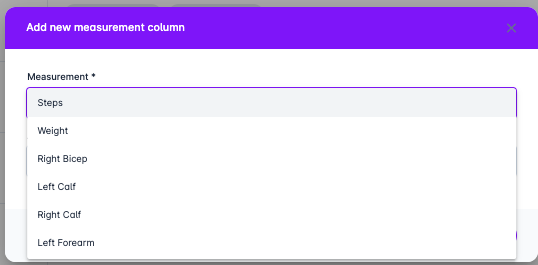
To add your own custom metrics & measurements take a look at:
Can I create my own metrics & measurements?
Creating custom metrics & measurements
After selecting an item, you can apply aggregations such as average, max, or min to analyse the data for that week.
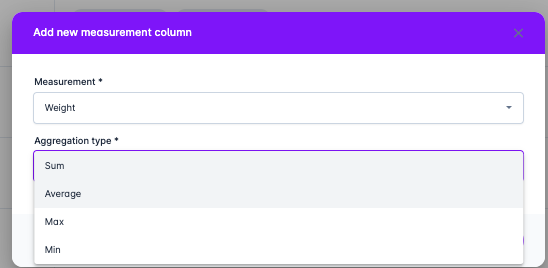
Click add and that metric or measurement will be added to your roadmap. Data will automatically be added once its available for that week.
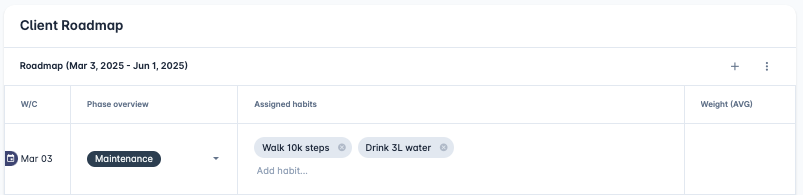
Macro targets allow you to set daily macro goals for your client each week, enabling you to plan ahead while CoachKit automatically applies them to the client’s profile.
To add a macro target, choose the column type, then either select from your existing targets or create a new one.
To create a brand new one click create new and give it a name e.g. training, rest etc.
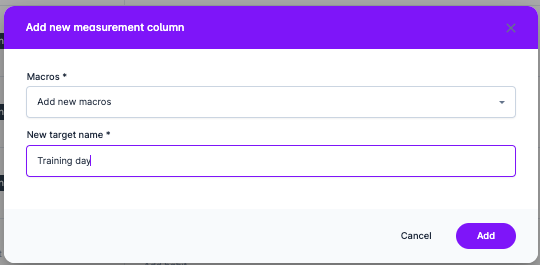
This will create you a new macro column type with that given name.
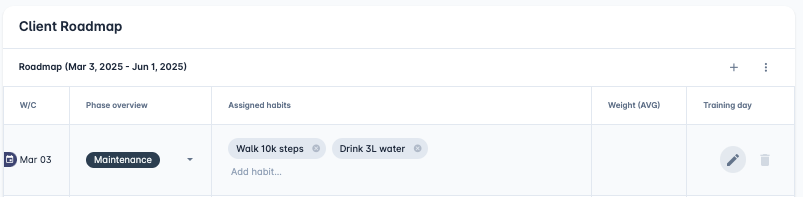
Now we can start to define the macro nutrients for that macro target type by selecting the edit icon.
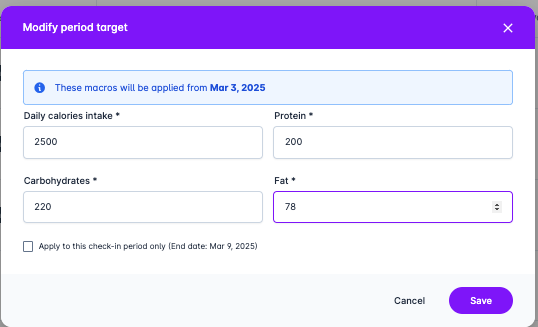
The following modal will appear, allowing you to set the macro targets. By default, these targets will be applied to the entire roadmap, but you can limit them to the current week by selecting the checkbox "Apply to this check-in period only."
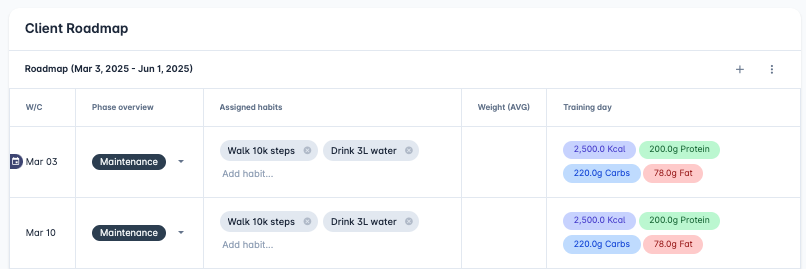
Just like habits, you can update or remove macro targets in the week you want them to change, and they will automatically adjust from that point forward.
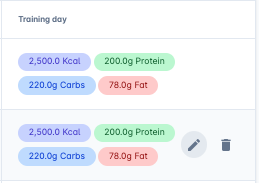
You can create as many macro target types as needed, such as rest days, cheat days, or any other custom targets. While most coaches use training and rest days, the system is fully flexible to suit your approach.
The macro targets you create can be assigned to your client's nutrition schedule or diet plan. Once assigned, they will automatically adjust as the weeks progress.
See the below guides for more details regarding nutrition schedule and macro targets with nutrition plans.
How do I assign a macro target to a day?
Assigning macro targets to a day
How do nutrition schedules work?
Nutrition schedule