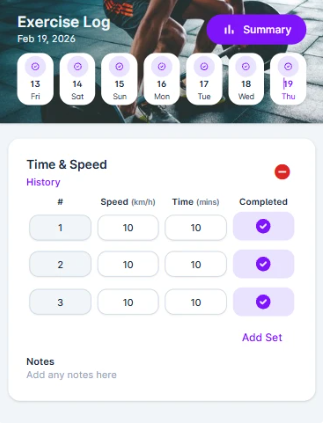
You can customise the data fields used for each exercise. These fields define what is tracked during workouts.
Available data fields
Name | Unit |
Cadence | - |
Calories | kcal |
Distance | km |
Heart Rate | bpm |
Reps | - |
RIR | - |
RPE | - |
RPM | - |
Speed | km/h |
Time | mins |
Watts | - |
Weight | kg |
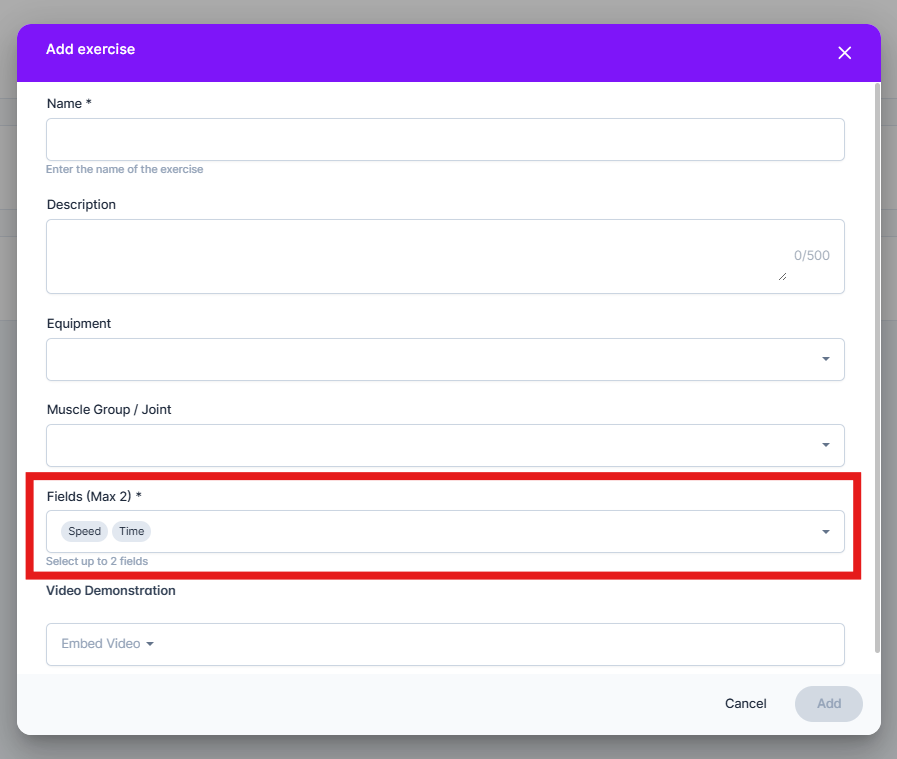
When creating or editing an exercise in the Exercise Library, you can choose which data fields should be tracked. To get to the Exercise Library, look for Library > Exercises in the navigation menu.
New exercises are created with the following fields by default:
Weight
Reps
At least one field must be selected
A maximum of two fields can be assigned to an exercise
When an exercise is added to a workout, its configured data fields automatically appear.
For example:
Weight / Reps
Time / Distance
Watts / Time
These fields define what data clients will enter during the workout.
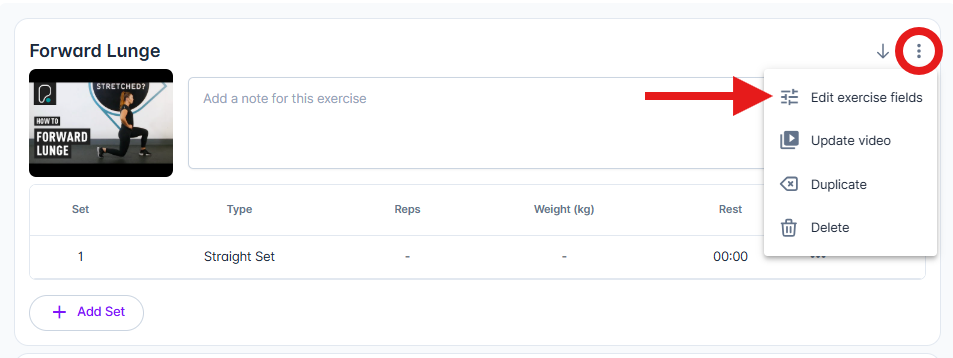
Click the exercise menu (three stacked dots)
Click Edit Exercise Fields.
The field editor will open for that exercise.
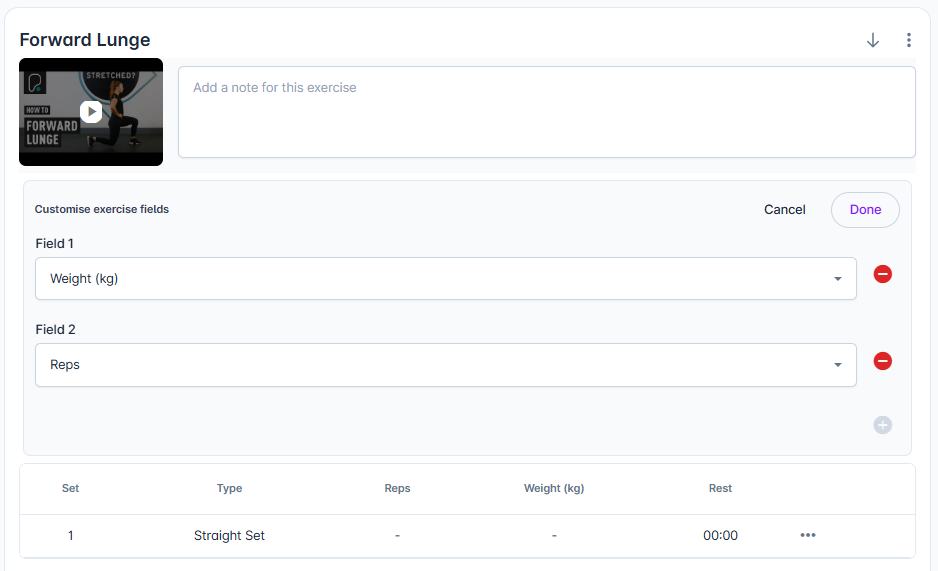
Click the minus (-) icon next to a field dropdown to remove it.
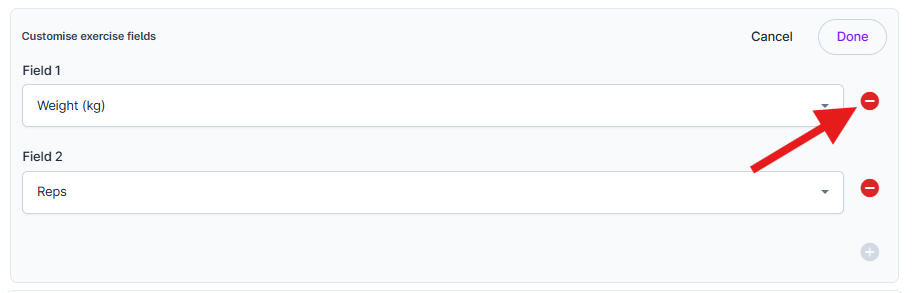
If the exercise only has one field, it cannot be removed.
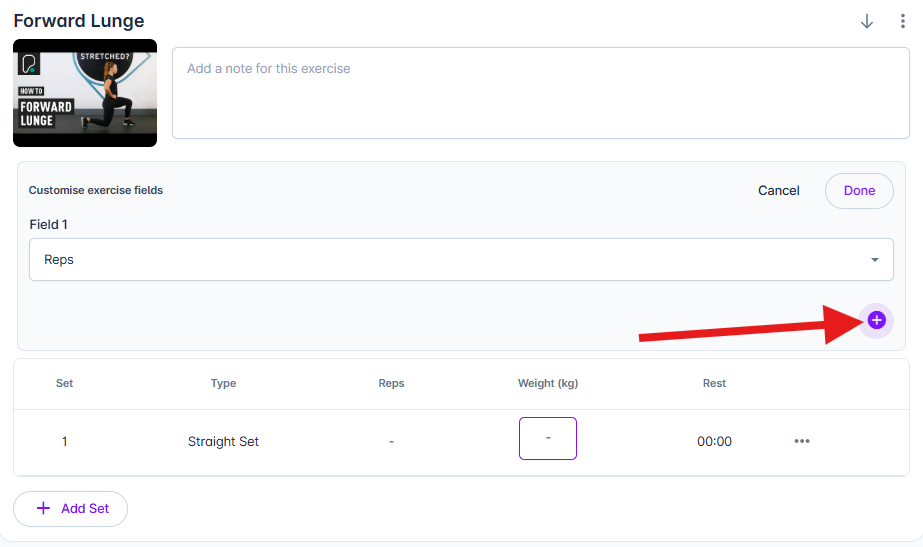
Click the plus (+) button to add another field, then choose the desired metric.
Saving or Cancelling Changes
Cancel – keeps the existing fields and values unchanged.
Done – applies the updated fields to the exercise in the workout.
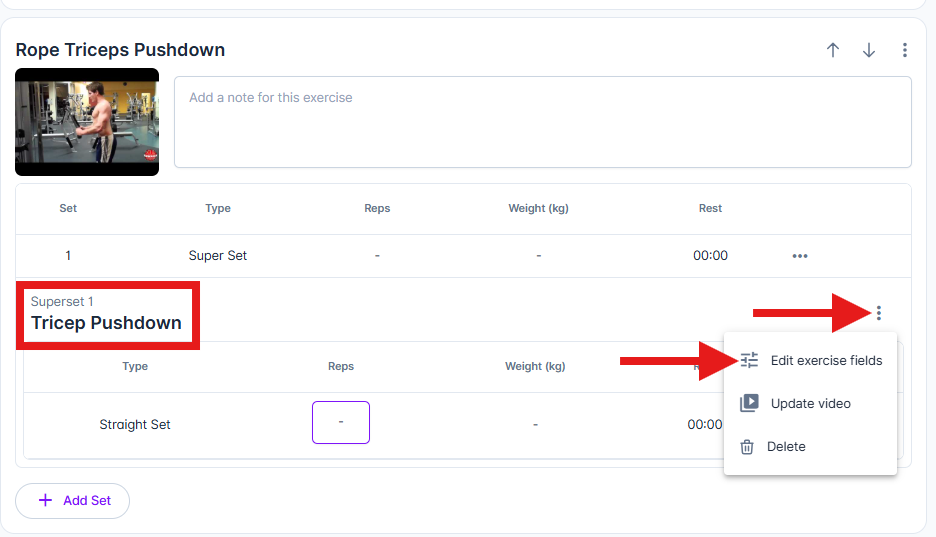
Fields can also be edited for exercises inside supersets.
To do this:
Click the exercise menu next to the exercise within the superset.
Select Edit Exercise Fields.
Follow the same steps described above.

When your client performs the workout, they will see the updated fields and be able to record data against them.