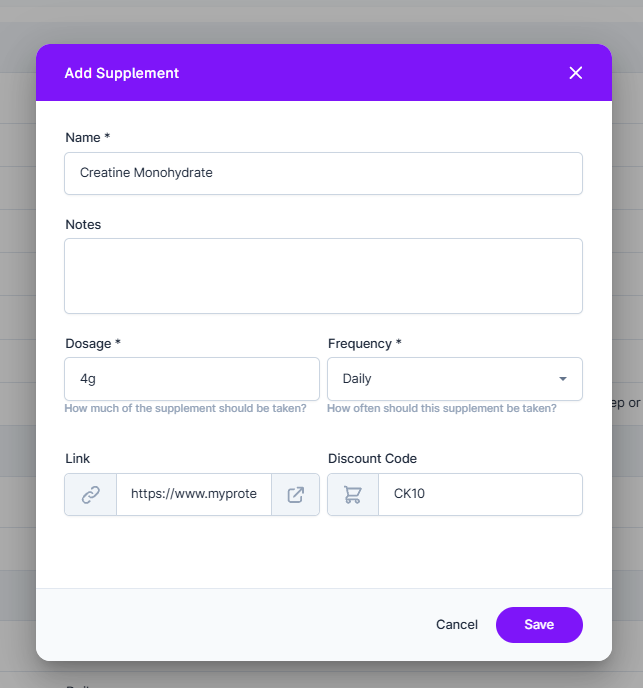
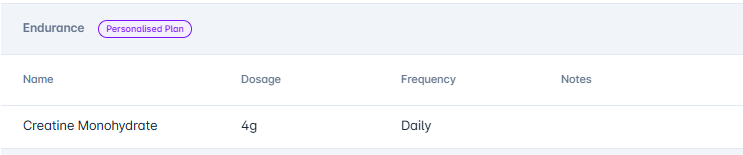
You can personalise a supplement plan for a client in two ways:
Customise it when assigning the plan in bulk
Edit the supplements directly in a plan that's already assigned
To assign and personalise a plan: Navigate to the client's profile, go to Supplements, and click the action menu.
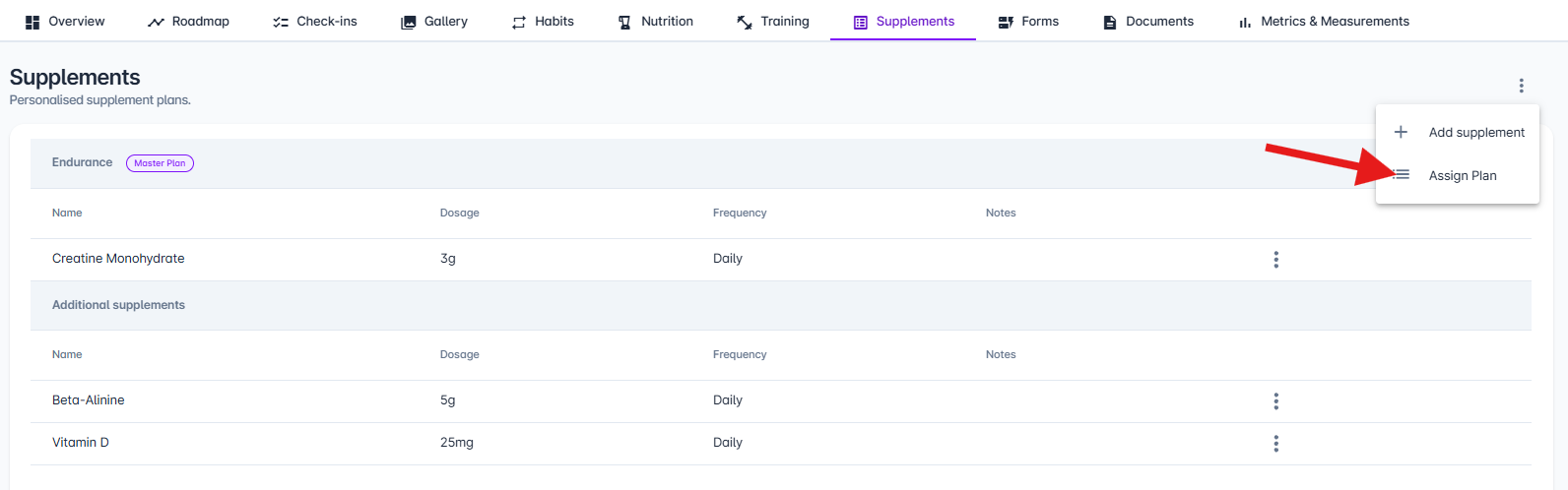
From here, select the plan and choose whether to use the master plan as-is or customise it.
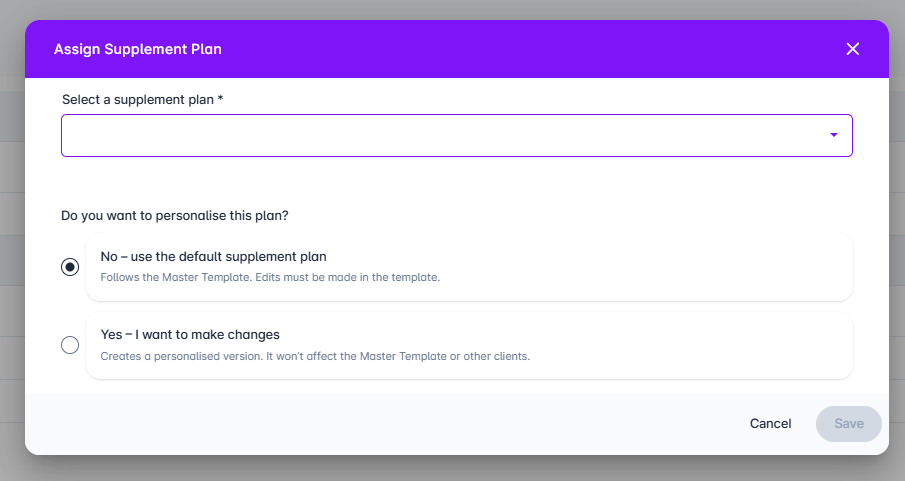
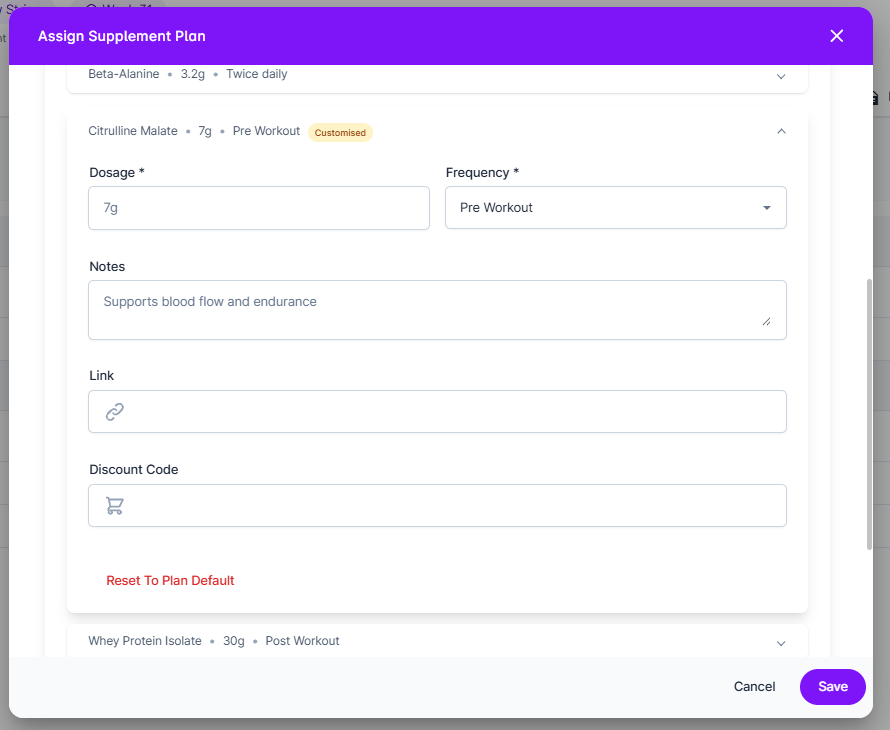
If you opt to make changes, you can edit the supplements before saving by expanding the relevant supplement dropdown and adjusting as needed. To revert any changes, click Reset to Plan Default to restore the original settings.
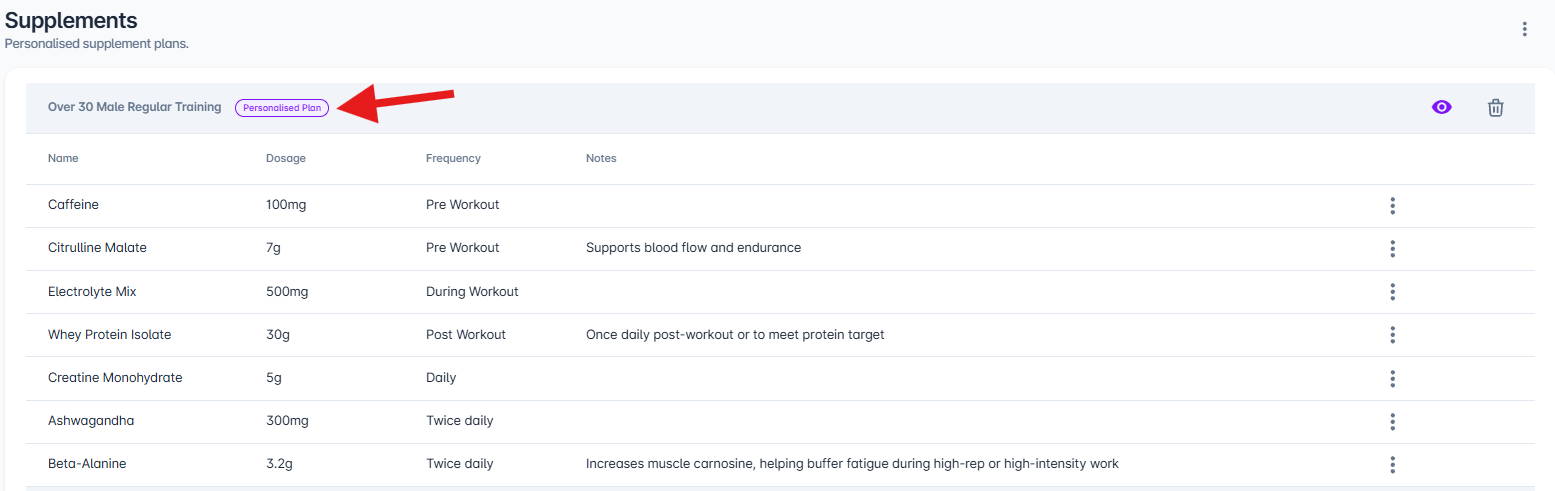
The plan will now be marked as Personalised. This means any changes to the master plan will not affect this client.
To customise a master plan that's already assigned: Click on the supplement row or select Edit from the action menu for the plan you want to personalise.
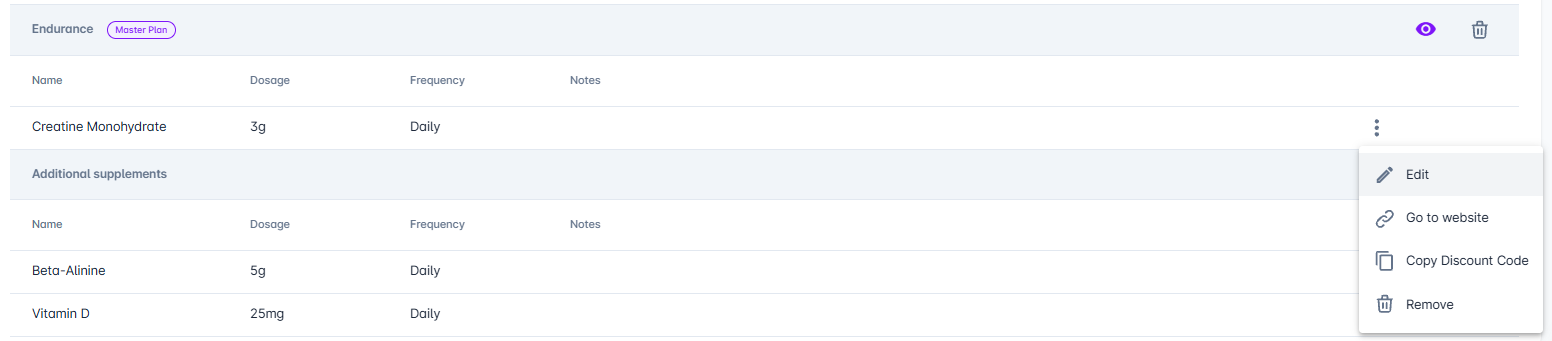
Make your adjustments to fit your client's needs. When you save, the plan will automatically convert to a Personalised plan.