
Once your client connects their MyFitnessPal or Cronometer account to CoachKit, their food logs will automatically sync with the platform on a regular basis.
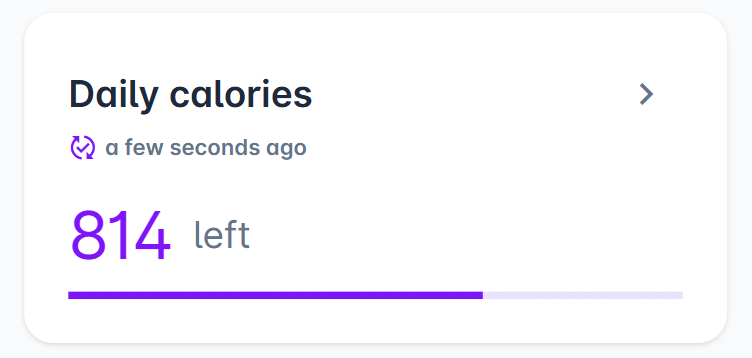
Sync Status Indicator: Look for the sync symbol (described below) to see when data was last updated.

All synced meals appear in the Food Log section under the Nutrition page. Here you'll see:
The source (e.g. MyFitnessPal)
Timestamp of the last successful sync
All logged food items and their nutritional data
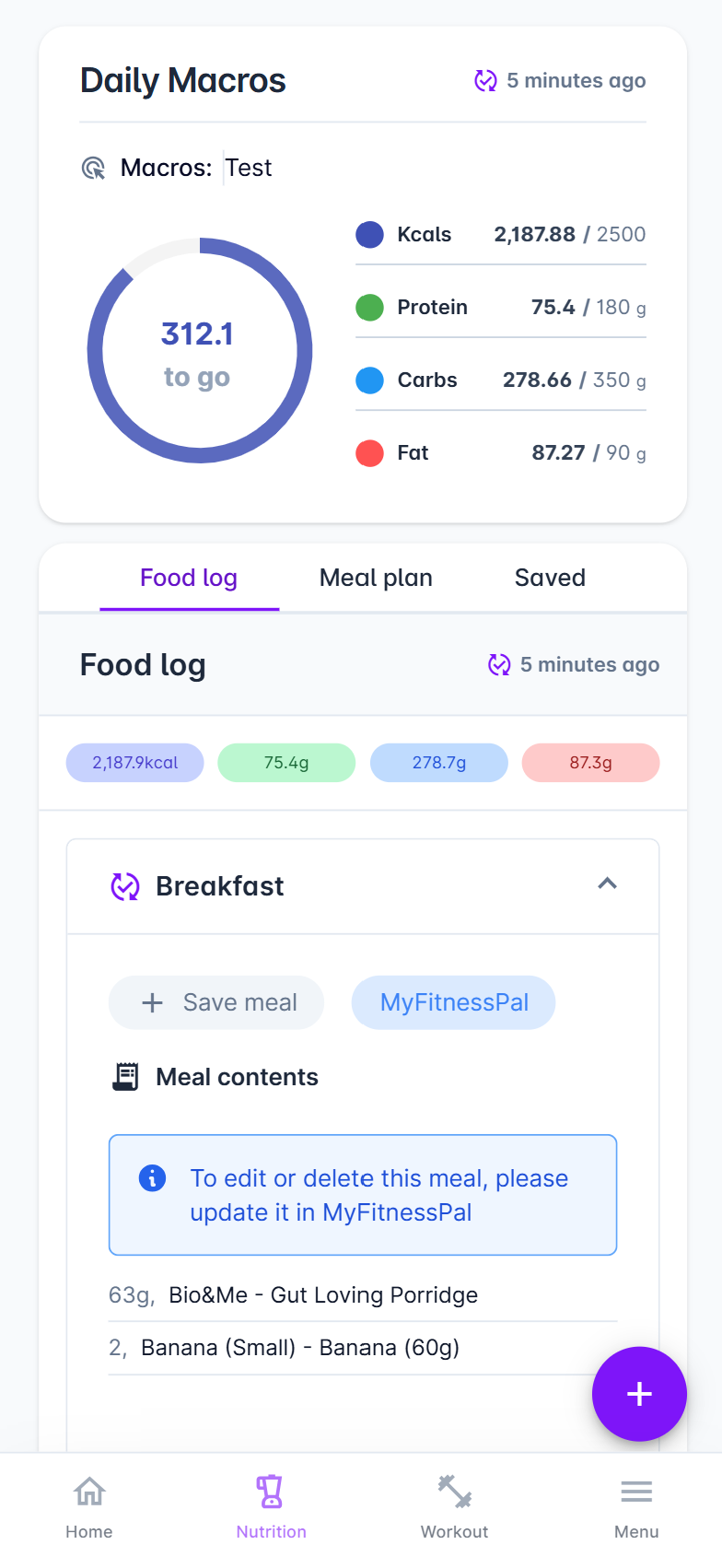
Important: To edit any synced meal, your client must make changes directly in their connected app (MyFitnessPal or Cronometer).

Where else can I see synced data?
When macros are logged through the connected app, they automatically populate your client's daily check-in form, eliminating the need for manual entry.
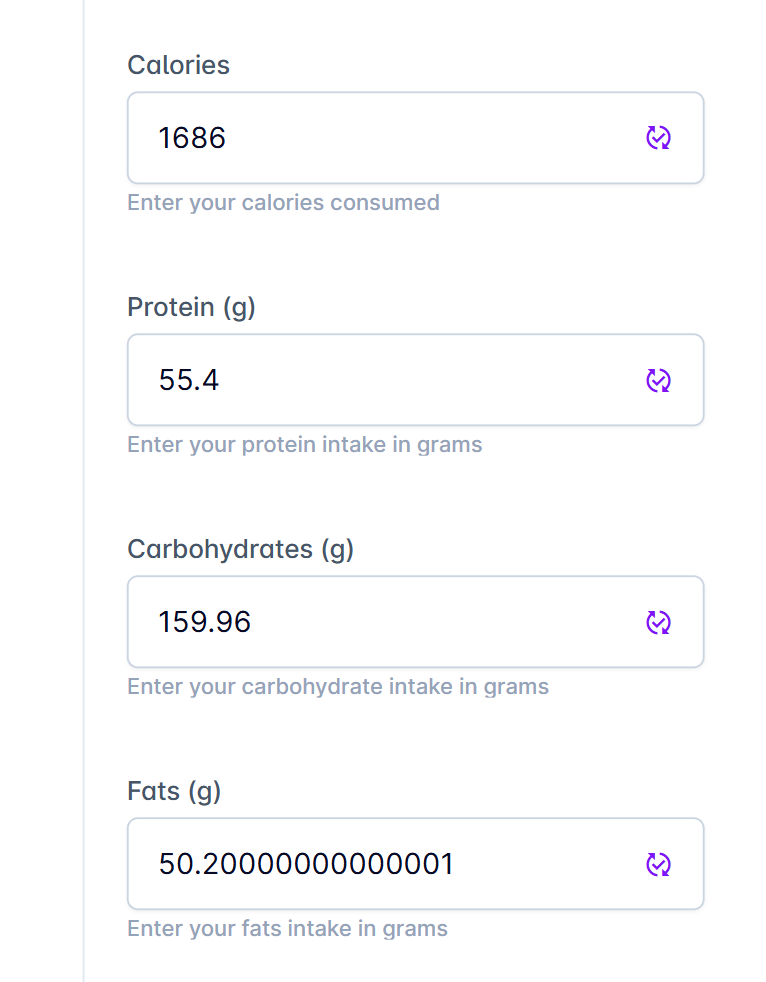
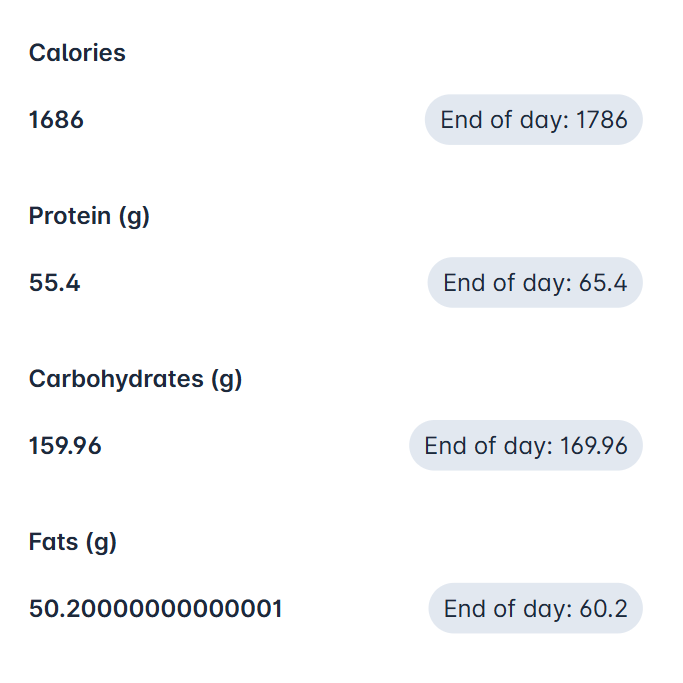
If your client's macros change after they've already submitted their daily check-in:
The check-in form will display the originally submitted values
The updated actual values will be recorded in the nutrition section
This ensures both the client's self-reported data and the accurate logged data are preserved
Troubleshooting
If sync appears to have stopped working, check:
Client's app connection status
Recent activity in their connected app (e.g. MyFitnessPal)
Sync timestamp to determine when the last update occurred